In every list (for example, workorders or requests), two search filters are available to filter and search data.
Option 1: General search filter
Every list has a general search function in the top-right corner. This function searches all displayed columns. One exception is, for example, the attachments column.
Option 2: Advanced search filter
In addition, overview lists have an advanced search filter that allows you to search by column using the 'funnel' icon
|
Icon |
Function |
|---|---|
|
|
Create a filter |
|
|
Show or hide columns |
|
|
Make columns wider. Click this button again to rearrange columns |
|
|
Save the configuration (filter, column widths, column order and column visibility) as a view |
|
|
Load a saved view |
|
|
Reset the list to the default display / remove the view |


Create a view
Click the button to create a filter.
For each column (red), you can specify a condition (green) and a search value (blue). This allows you to build filters that search for very specific criteria.
Examples of conditions are:
- Contains
- Starts with
- Does not start with
- Empty
- Between (for dates)
- Before (for dates)
- After (for dates)
- Greater than
- Less than
- Equal to
- Etc.
Each rule in a filter can be placed "under" another filter. For example, you can search for all open workorders, but only those involving a breakdown and having priority 1.
Creating and using views
If you want to use a filter frequently, for example to view all open workorders every morning, you can save it as a 'view' and reload it later. A view can be shared with other users, edited and deleted. Deleting a shared view means that other users will no longer be able to use it. Only the owner of a view can delete a shared view.
Filtering by dates and times
The advanced search filter also provides options to make filtering by date easier.
The following expressions can be used to filter date fields easily.
Select a date field, such as the creation date or planned date, then select "Equal to" as the condition and enter one of the expressions below as the value, including the square brackets.
|
Text |
Explanation |
|---|---|
|
[yesterday] |
Shows all items with a date matching yesterday. |
|
[today] |
Shows all items with a date matching today. |
|
[tomorrow] |
Shows all items with a date matching tomorrow. |
|
[last_week] |
Shows all items with a date within the previous week. |
|
[this_week] |
Shows all items with a date within the current week. |
|
[next_week] |
Shows all items with a date within the next week. |
|
[previous_month] |
Shows all items with a date within the previous month. |
|
[this_month] |
Shows all items with a date within the current month. |
|
[last_month] |
Shows all items with a date within the next month. |
|
[previous_quarter] |
Shows all items with a date within the previous quarter. |
|
[this_quarter] |
Shows all items with a date within the current quarter. |
|
[last_quarter] |
Shows all items with a date within the next quarter. |
|
[previous_year] |
Shows all items with a date within the previous year. |
|
[this_year] |
Shows all items with a date within the current year. |
|
[last_year] |
Shows all items with a date within the next year. |
For example, using this as a filter on a date field (such as the creation date of a workorder) returns all workorders created during the current week. By saving this as a view, "this week" automatically moves along with the current date.

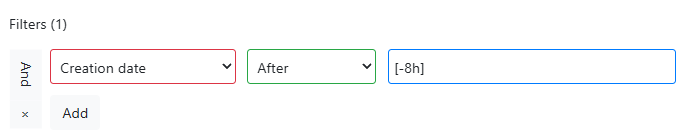
It is also possible to filter date fields using relative date notation, such as 12 hours ago. The "before", "after", "between" and "not between" conditions support these expressions. The expression always consists of square brackets containing a + or - sign, a number and a unit.
For example, filtering on [-8h] looks 8 hours back, while filtering on [+2w] looks 2 weeks ahead. The number must always be an integer.
|
Unit |
Explanation |
|---|---|
|
n |
minutes |
|
h |
hours |
|
d |
days |
|
w |
weeks |
|
m |
months |
|
q |
quarters |
|
y |
years |
For example, entering this in the filter displays all workorders created between 8 hours ago and the current moment. This is particularly useful for shift handovers.
Filtering by employees
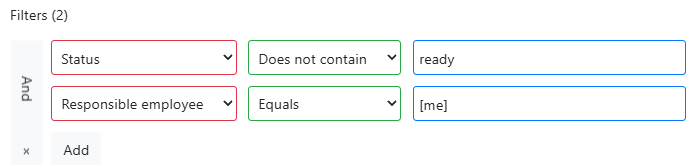
Employee fields (such as the responsible person or employee on a workorder) can also be filtered using the "[me]" expression.
Using "[me]" displays only items associated with the currently logged-in employee.

Advanced filtering
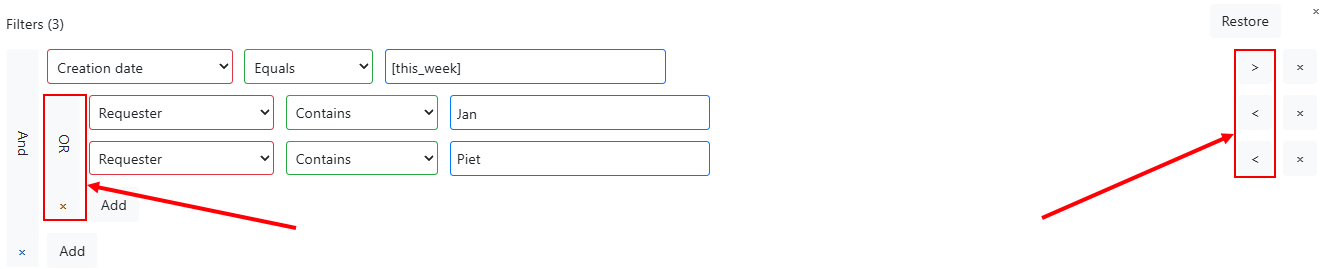
By using the "AND" or "OR" options in a filter, you can determine how the search should be performed. In the example below, the filter searches for all workorders with the status "Created" where the requester is either "Jan" or "Piet".
Clicking the "AND" button changes it to "OR". Click it again to switch back to "AND".
By selecting the depth on the right, you can create multiple levels, each with its own filter conditions.
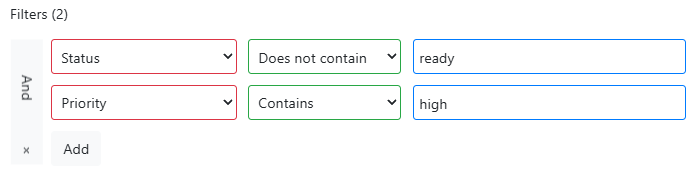
By creating smart views, you can easily retrieve the right information every day with just a few clicks. For example, you could create a view showing all open workorders by filtering on "Status" - "Does not contain" - "Ready". This leaves you with all open workorders.

Or create a view showing all open workorders with "High" priority.
Use the configuration above and add "Priority" - "Contains" - "High".
By setting up views properly, you save time every day and maintain a clear overview.
Alternatively, create a view containing an expression, such as all open workorders assigned to the employee currently opening the view.